Tutorial: a form as a conversation
On this page
A Conversation asks a form's fields one at a time, as a chat: the assistant asks, the person answers, and a summary of every answer comes before Submit. The answers are saved under the same Pega properties as a normal form, so Pega validates and routes the case exactly as before. Only the screen changes.
This tutorial builds a short recipe intake (“Add a recipe”) and follows it from the canvas to Pega.
When to use one. Pega's design system has no conversation pattern (it prefers multi-step forms), so the studio flags a conversation as a note, not an error. Use it for short, customer-facing intake: a handful of questions from someone who does not use Pega every day. Case workers who fill the same form all day are faster with a normal form.
1. Put the fields inside a Conversation
- Components → Built-in → Layout → Conversation: drag it onto the page (or click it to add it to the selected layout).
- Drag the fields you want to ask about into the conversation, in the order they should be asked. Here: a text input, a picklist, a number input and an upload area.
- Set each field as you would in a form: its label is the question, its Pega property is where the answer is saved, Required field makes it a question that cannot be skipped, and Helper text shows under the question.
- Select the conversation itself:
- Opening message is what the assistant says first (“Hi! Let's add your recipe to the collection…”).
- Assistant name is shown with its messages (“Recipe assistant”).
- Options: Summary of answers at the end and Assistant avatar.
While you edit, the fields show normally inside a dashed frame, so you can still select, reorder and style them. The line at the top says how many questions it will ask.
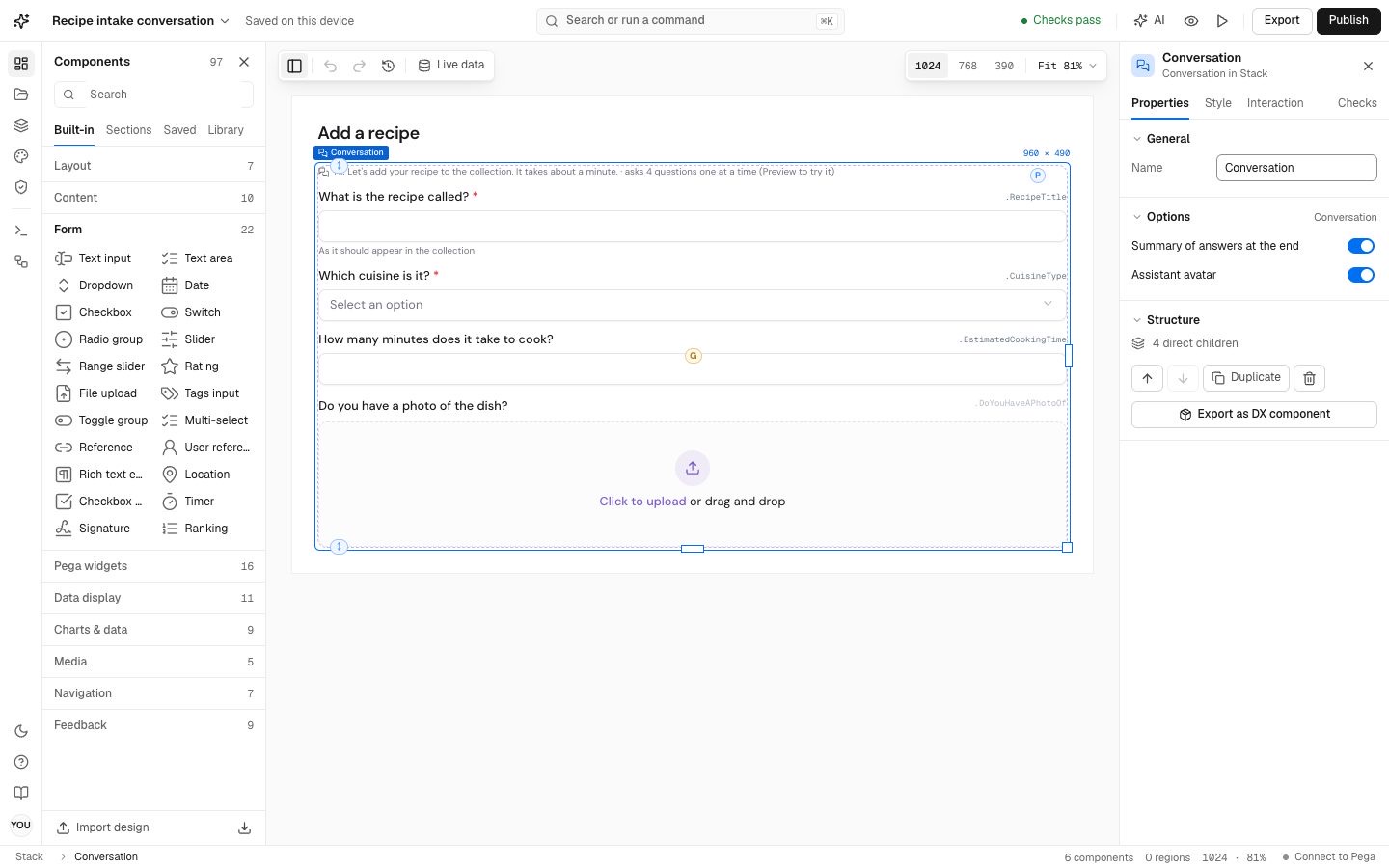
What each field becomes:
| Field in the conversation | How it is asked |
|---|---|
| Text input, text area | A typed answer (number, currency, email, phone and URL types are checked) |
| Picklist, radio buttons, toggle group | Buttons (up to five choices) or a searchable list (more) |
| Checkbox, switch | Yes / No |
| Date | A date picker |
| Slider | A number |
| Rating | Stars |
| Upload area | An attachment question: the files are attached to the case |
2. Try it in Preview
Click Preview (top bar). The conversation now runs: the opening message, then the first question with its helper text and a Next button.
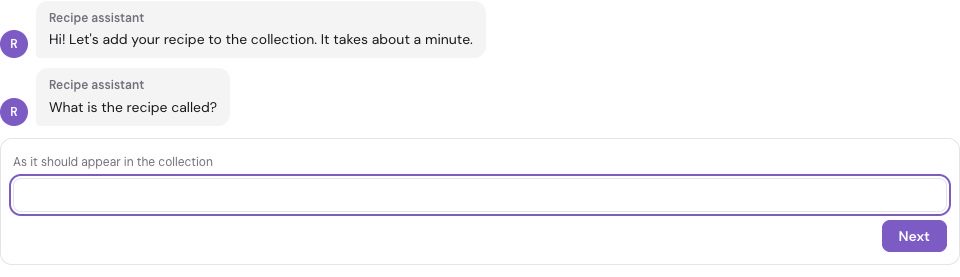
Type an answer and press Next (or Enter). A picklist is asked as buttons: one click answers it.
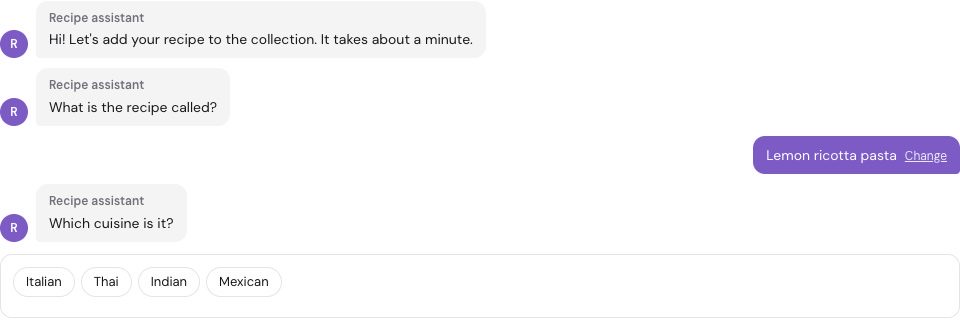
Optional questions say “(optional)” and have Skip. After the last question comes the summary of every answer.
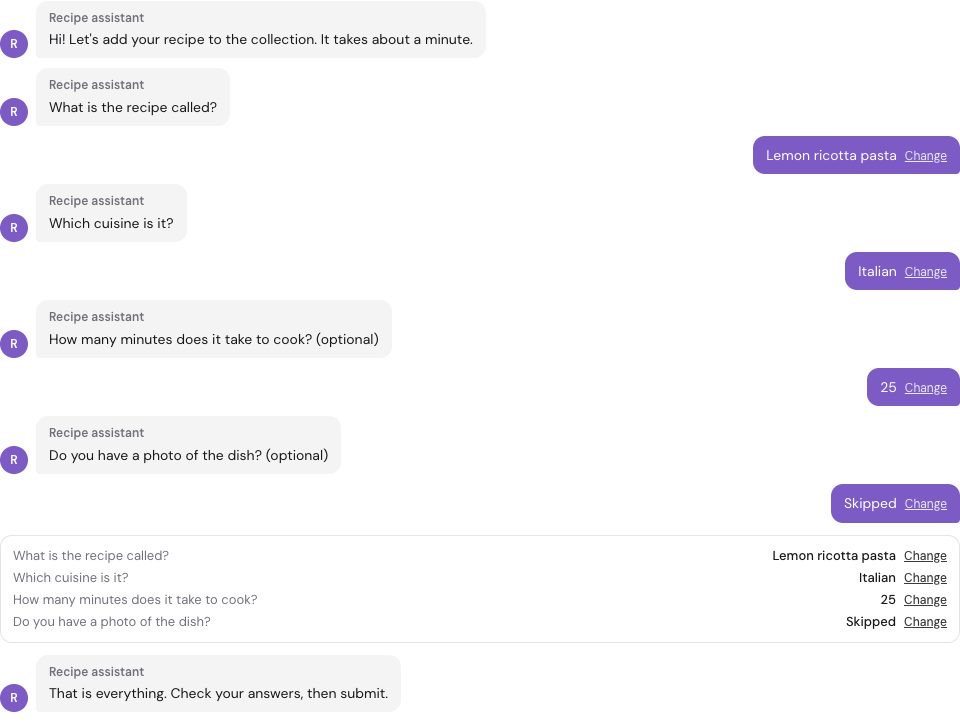
Every answer has Change: the question opens again with the current answer selected, and Cancel keeps it.
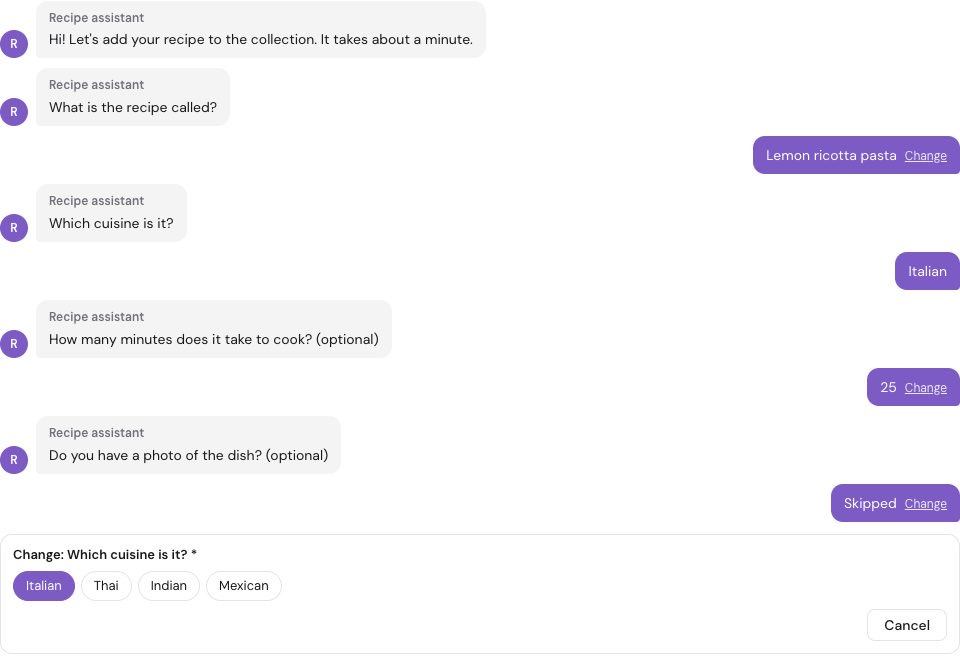
The conversation follows Pega's form rules: every question is labelled, there are no placeholders, and Next is never disabled. Pressing Next on an empty required question shows its error on the question instead.
3. Check it
The Pega checks panel (shield icon) adds a note for the conversation: what it asks and when to use it. It also adds one for the upload area, which has no standard Constellation component.
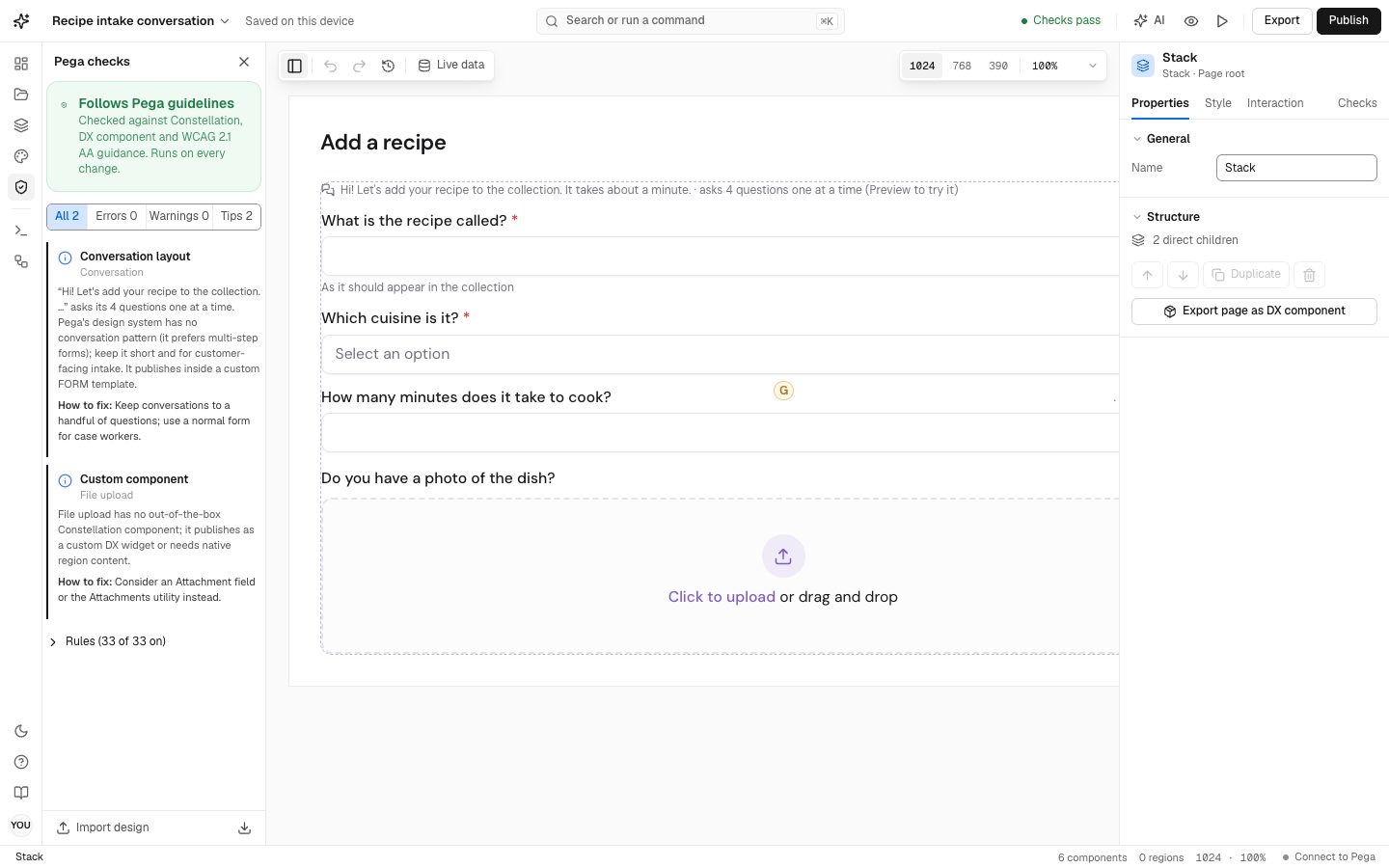
Nothing here blocks publishing. A field the conversation cannot ask (tags, a range, multi-select, checkbox group, or anything that is not a field) gets a warning: it is left out of the conversation, so move it to a normal section.
4. Where it runs
The same design works on every target:
| Target | What happens |
|---|---|
| Exported React app | The conversation is its own component (StudioChat.tsx); answers are the app's form values |
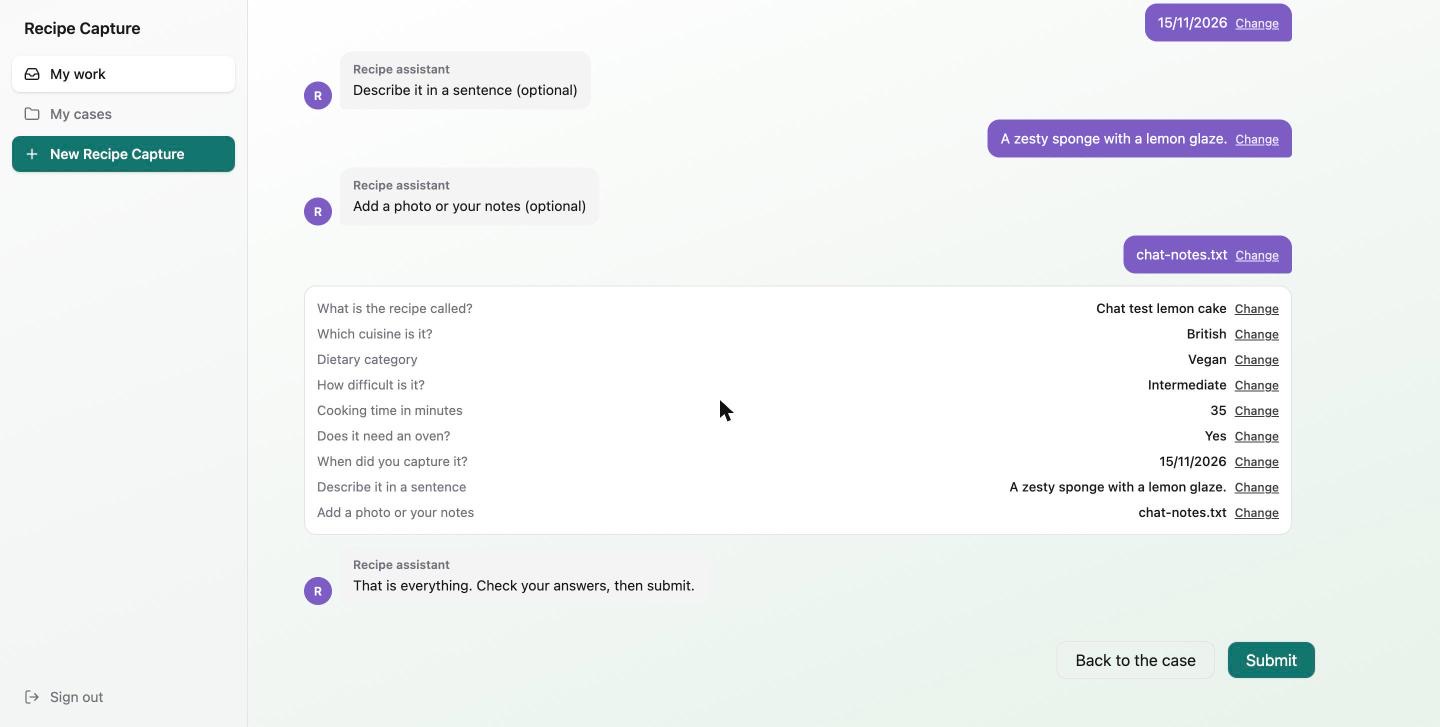
| App on a Pega backend (Case flows → Export) | A step designed as a conversation asks its fields; answers are saved to the assignment, attachments to the case |
| Run in Pega | The runner draws the conversation inside the real Pega case; answers and attachments go to Pega |
| Publish to Pega (FORM template) | Each question keeps its field's Pega property setting in App Studio; answers are written to the case, files attached |
In the exported app on a Pega backend, a step asked as a conversation looks like this:
5. Publish it
Publish as for any design: Publish to Pega → FORM template → pick it for the step's view in App Studio (Publishing components). In App Studio, each question's field has its value property setting (the Pega property from the design), plus helper text and the other field settings.
Good to know
- Keep it short: four to six questions. Long intake reads better as a multi-step form.
- Put everything you want asked inside the conversation; fields outside it stay a normal form on the same screen.
- Pega still decides: required fields, validation and routing are Pega's. The conversation only changes how the questions are asked.
- Tags, ranges, multi-select and checkbox groups, and Pega-only controls (case or data reference pickers) are not asked in a conversation; keep them outside it, in a normal section (the Checks warn when one is inside).